Eventum 2.4.0: Scenarios, Pipeline Metrics, and a New Home Page
Eventum 2.4.0 introduces Scenarios for composing multi-instance workflows, a redesigned instance metrics modal, a new Home page, and editable state management.
Eventum 2.4.0 is out. The headline feature is Scenarios — a way to group generator instances into named workflows and manage them as a unit. This release also redesigns the instance metrics modal, adds a new Home page, and makes state management interactive.
Scenarios
Until now, each generator instance lived on its own. If you needed several instances to work together — say, a firewall log generator feeding events that reference IPs from a DNS generator, both sharing global state — you had to start and stop them individually and keep track of which ones belonged together.
Scenarios solve this. A scenario is a named group of generator instances with shared global state. You create a scenario, add instances to it, and start or stop them all at once.
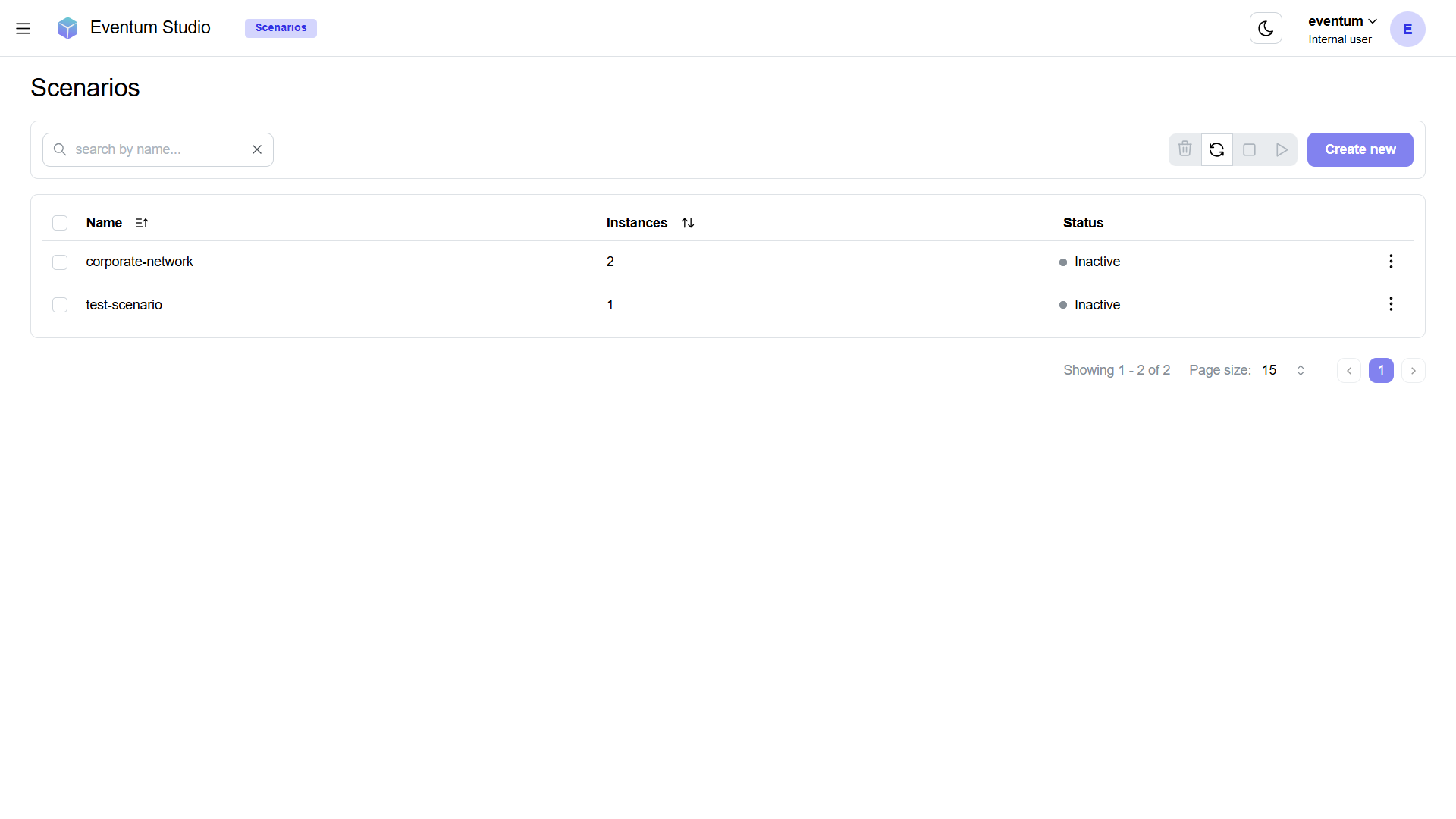
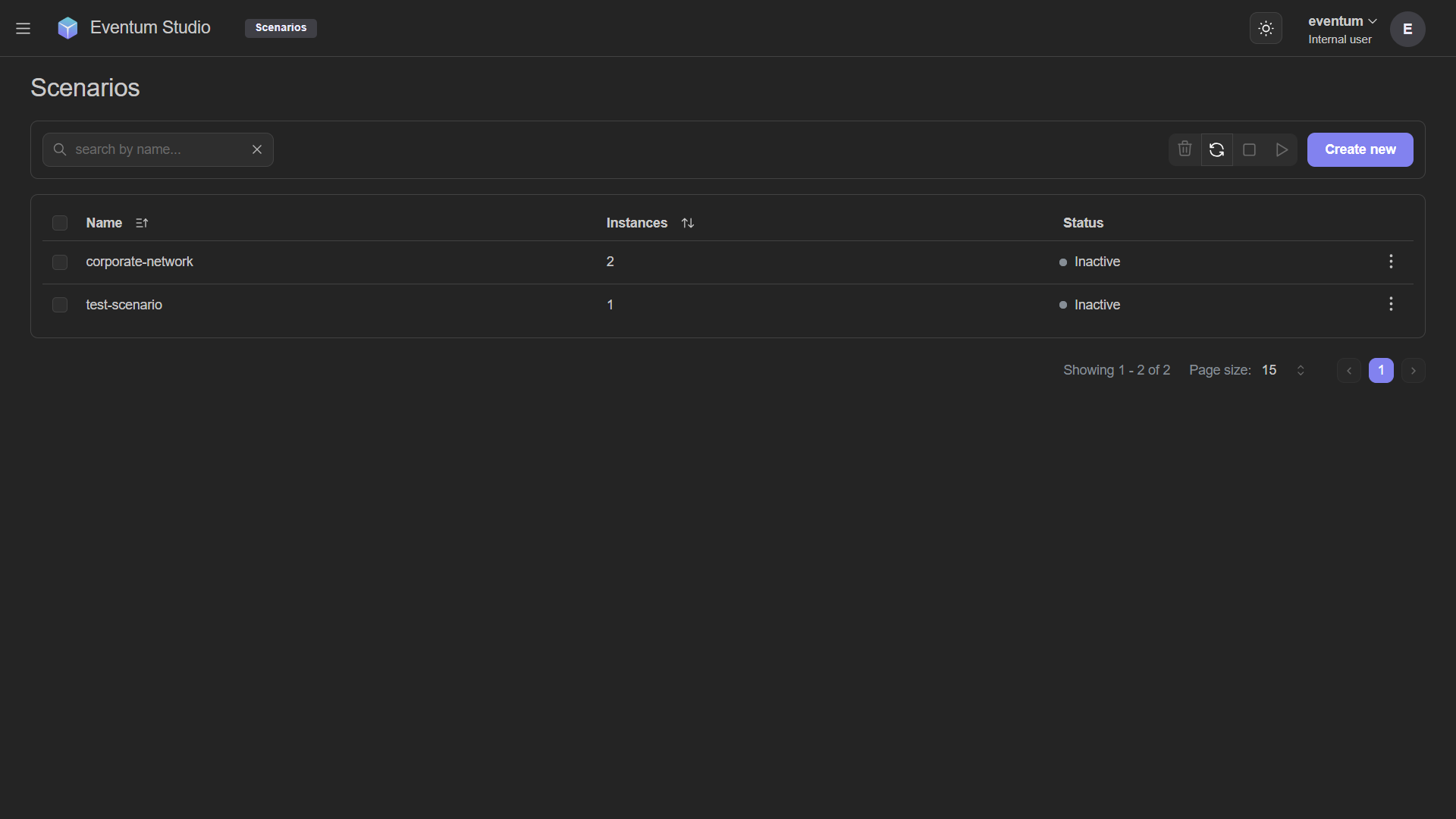
The Scenarios page gives you a table of all scenarios with search, bulk start/stop, and bulk delete.
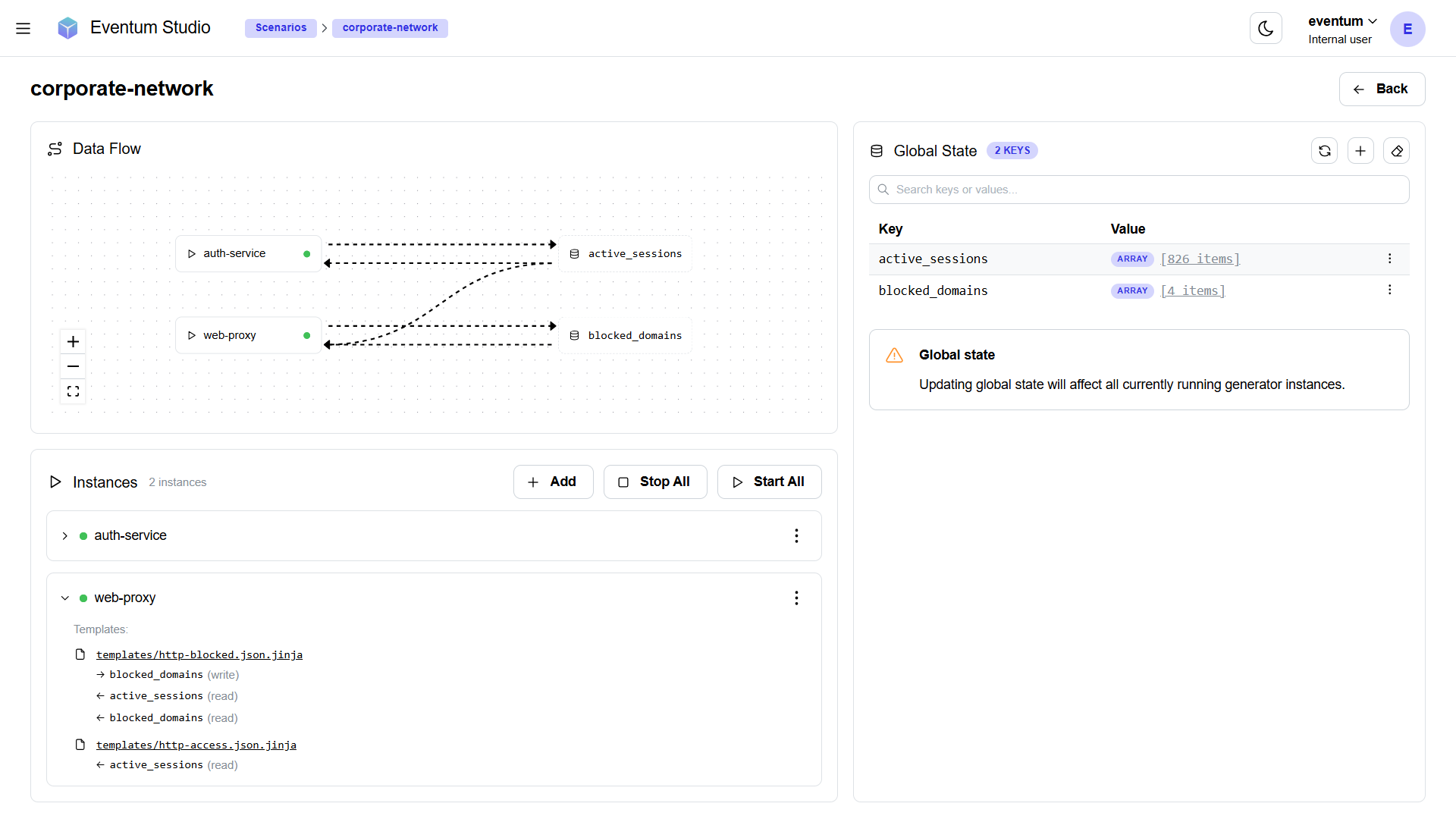
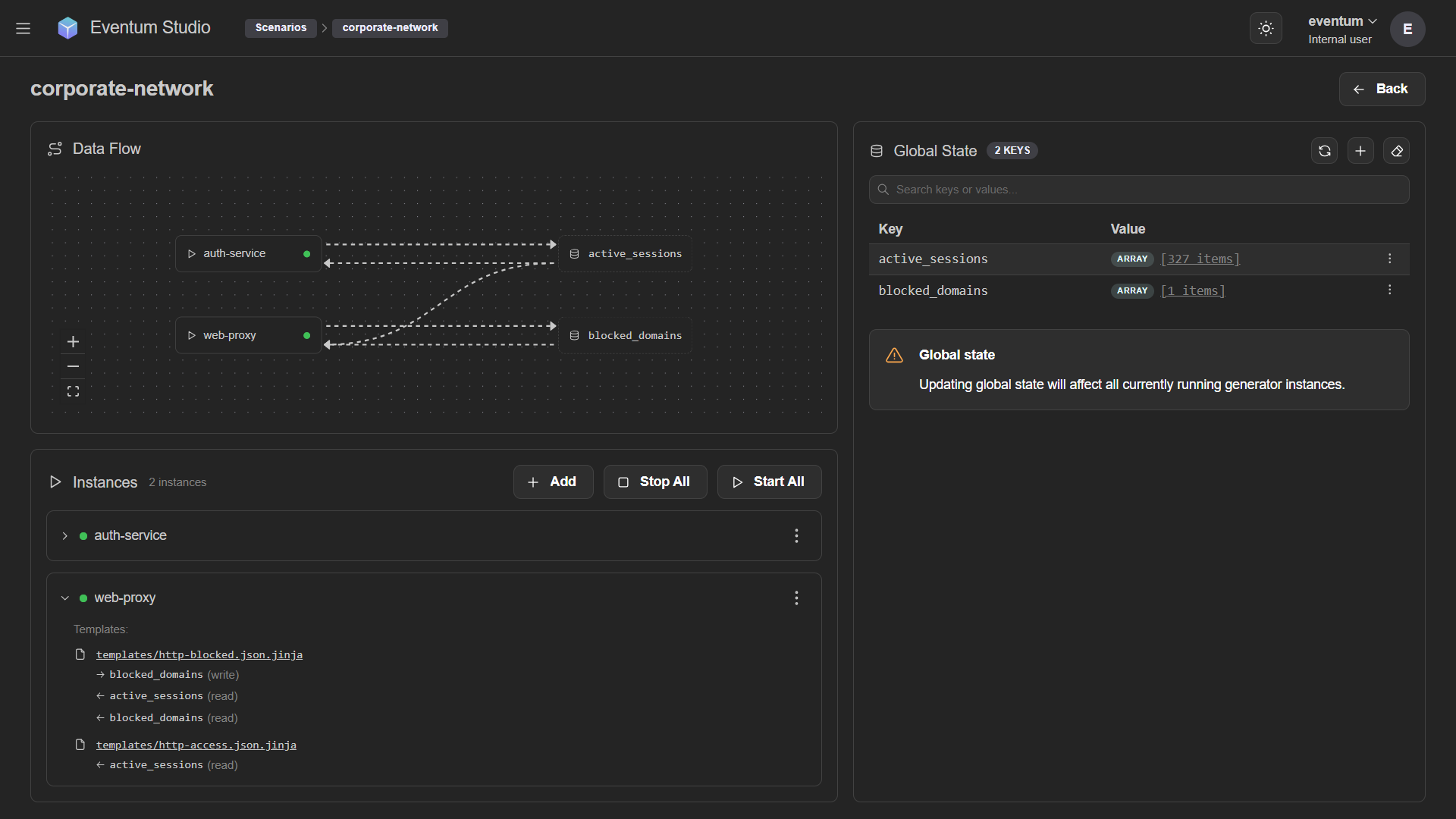
Click into a scenario and you get the Scenario page — an interactive Data Flow diagram that visualizes how instances connect through shared state, plus a Global State panel for inspecting and editing state at runtime.
Scenarios are also fully accessible through the REST API, so you can manage them programmatically if needed.
Instance metrics
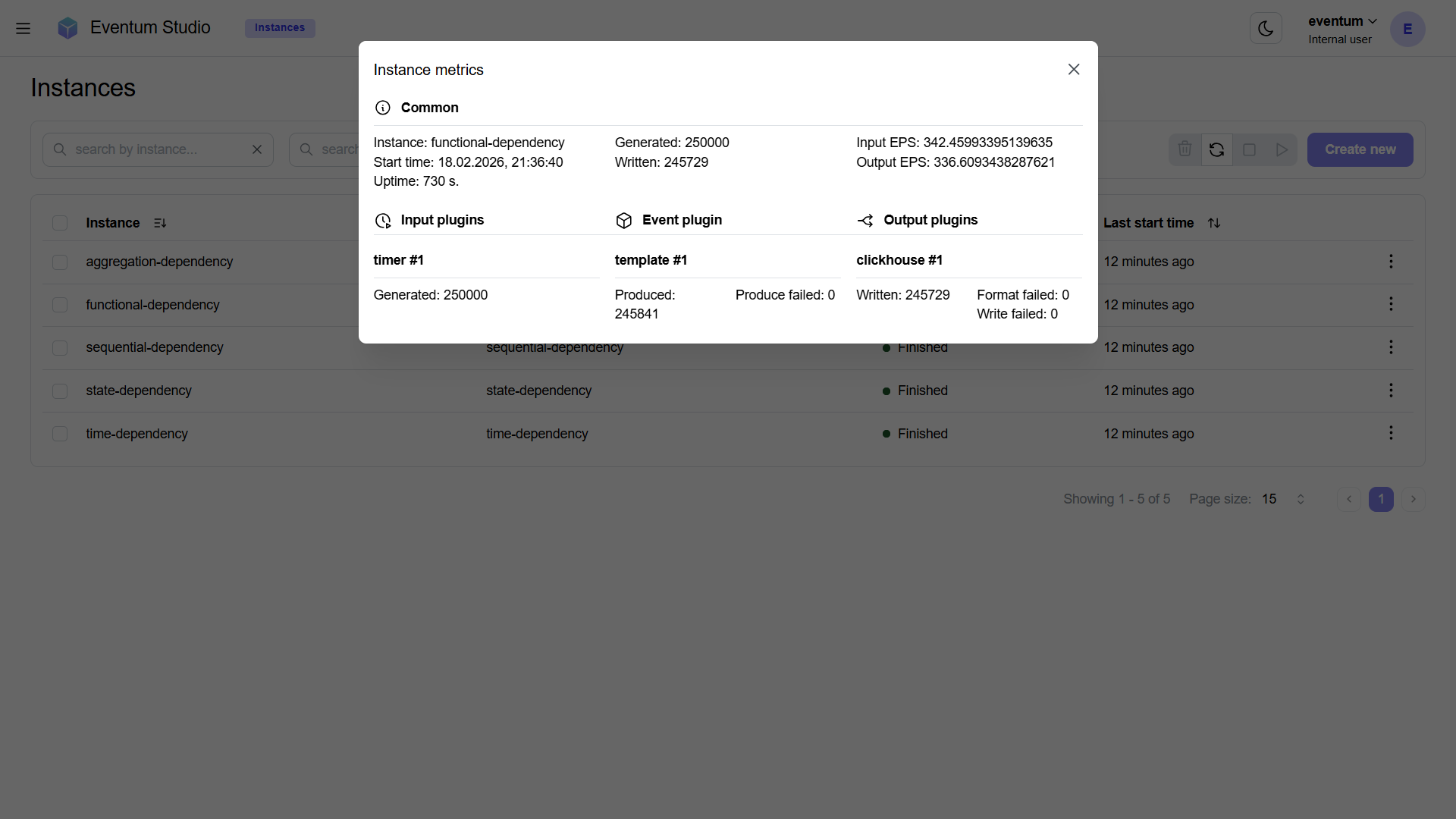
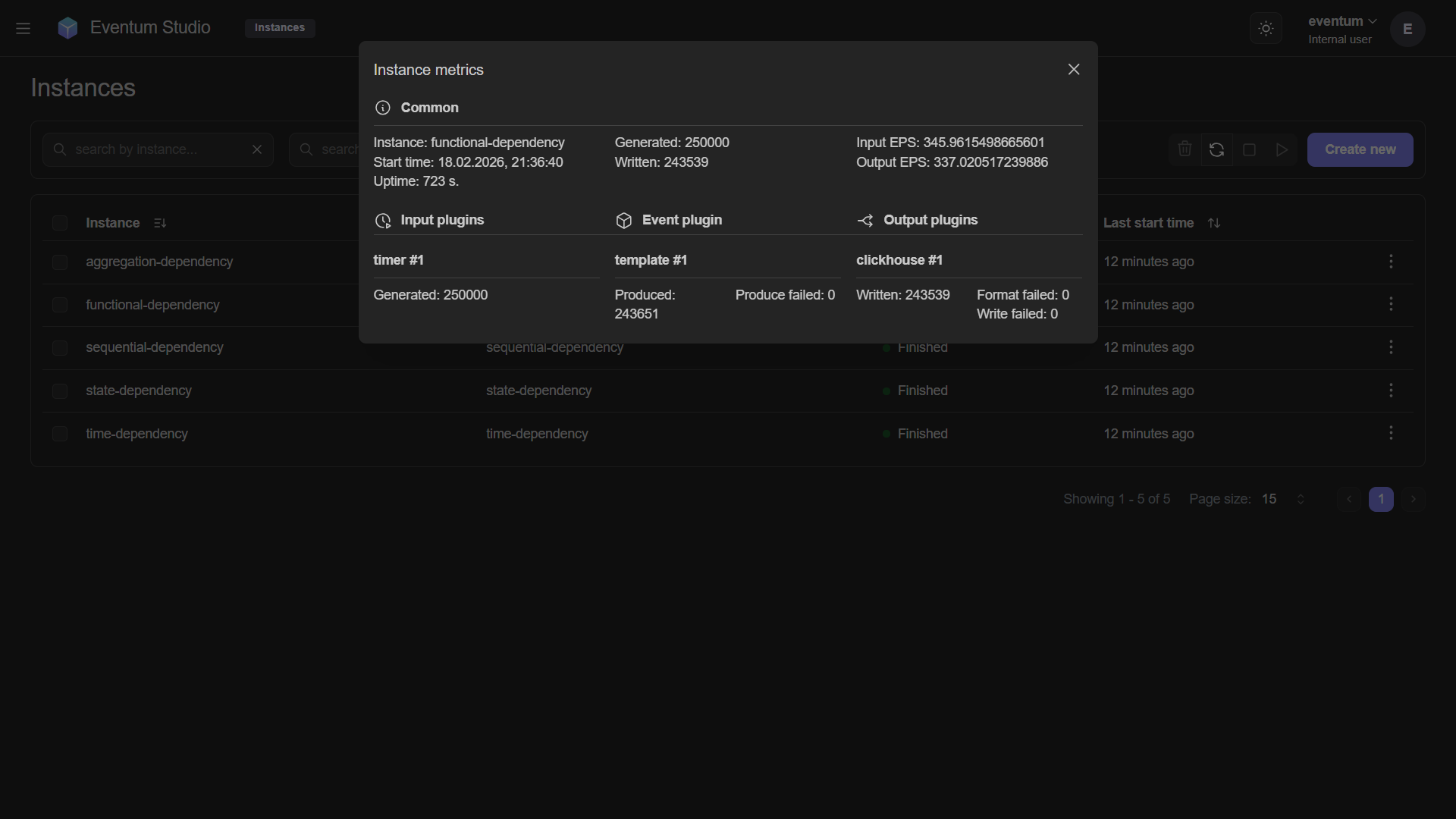
The instance metrics modal has been rebuilt as an interactive pipeline graph. Instead of a flat list of numbers, you now see your input, event, and output plugins laid out as a visual pipeline with a summary bar showing key metrics at a glance.
Home page
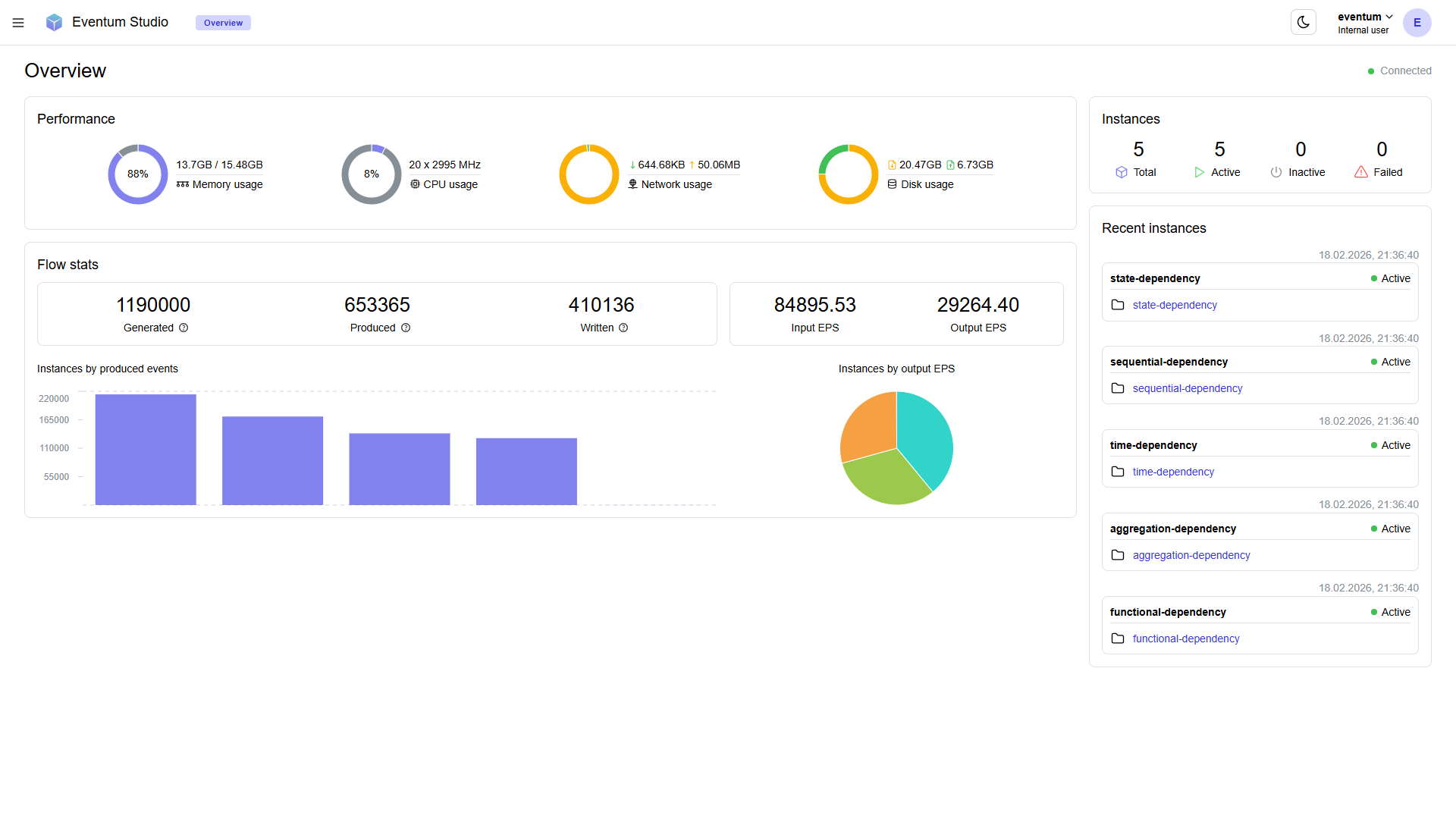
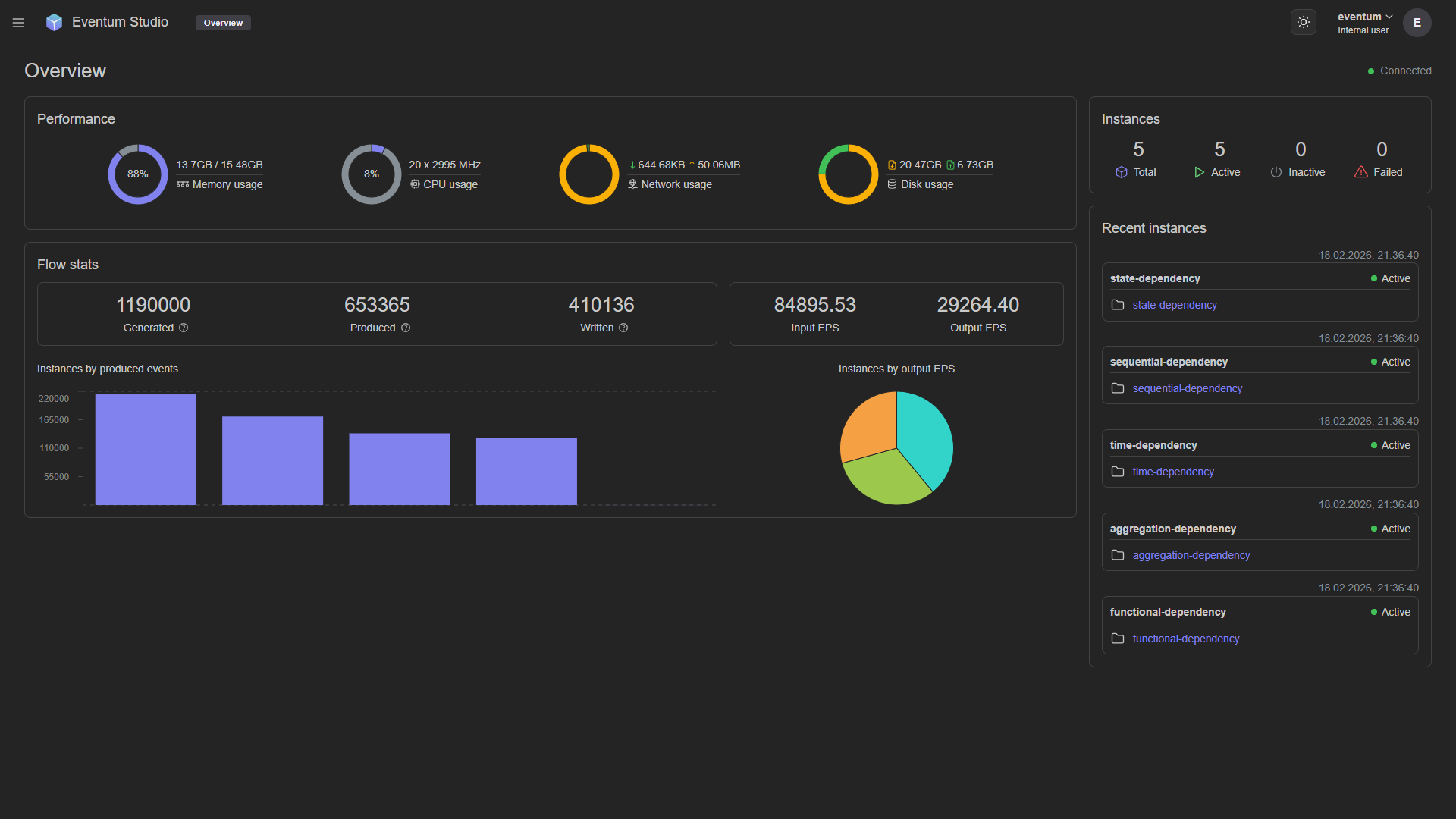
Eventum Studio has a new Home page with action cards for common tasks and a recent projects section. The previous Overview content (the Monitoring dashboard) has moved to its own dedicated page — same functionality, cleaner navigation.
State management
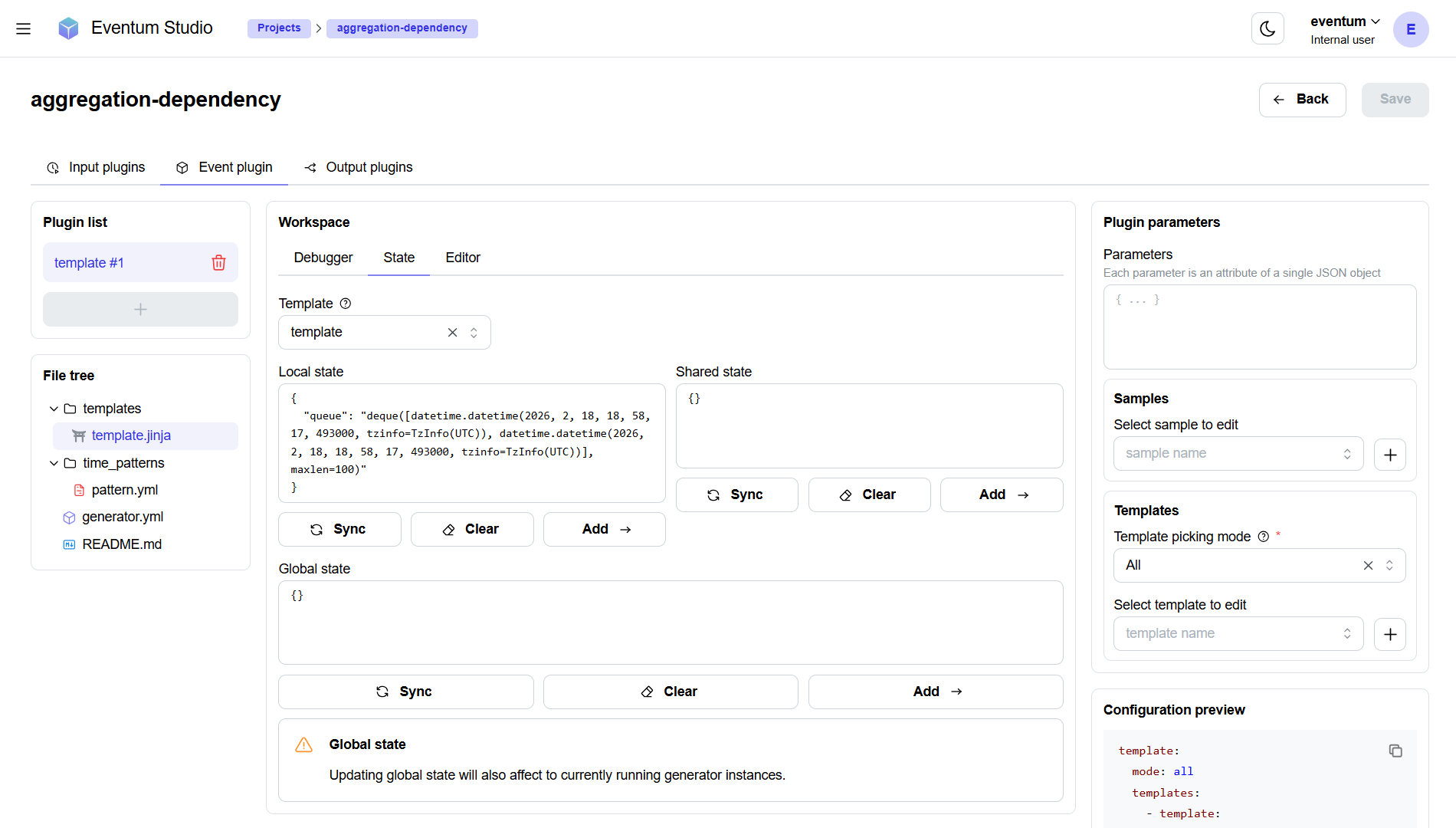
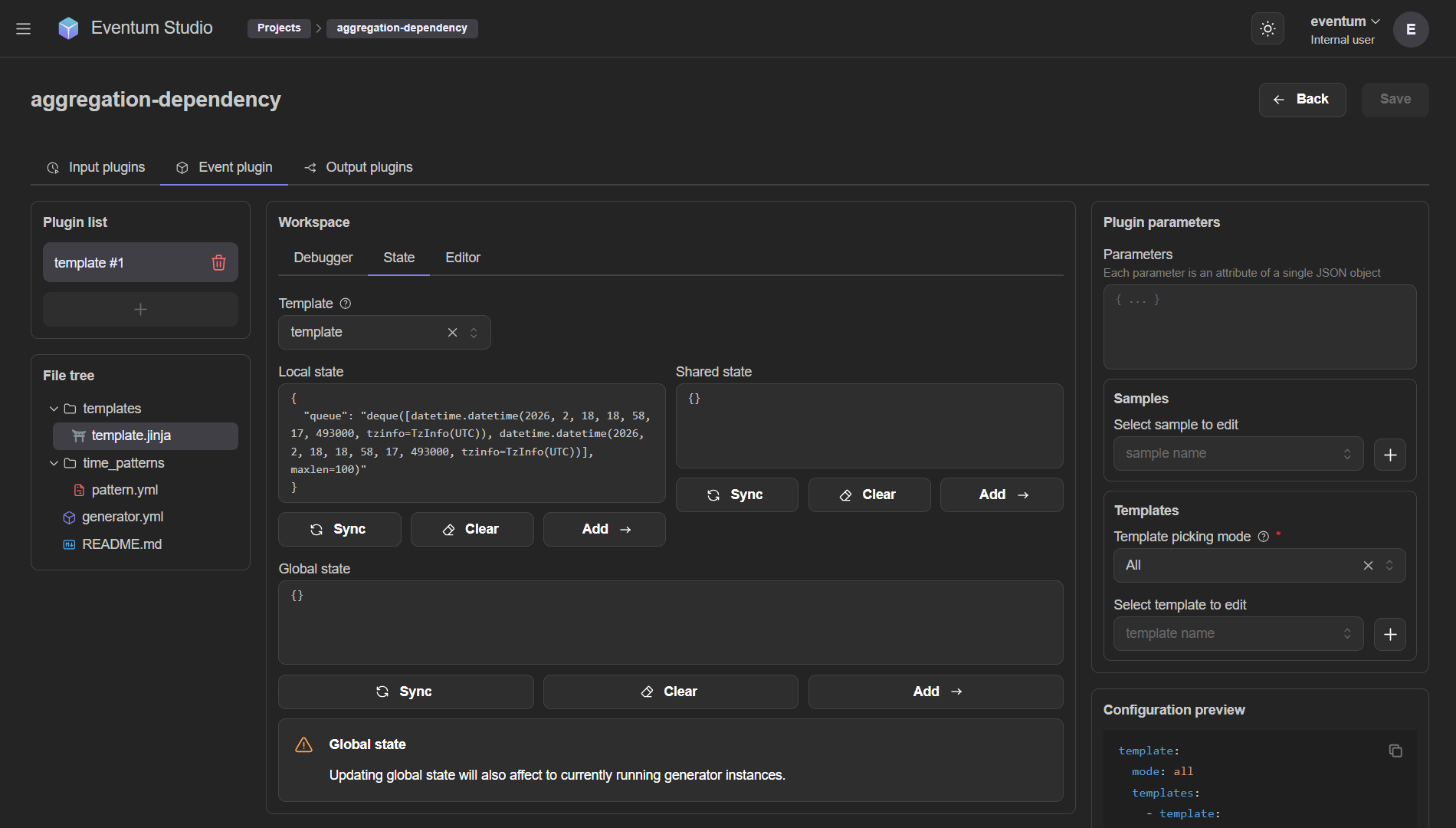
The project State tab now displays state as a key-value table instead of raw JSON. This makes it much easier to navigate and edit state, especially when it grows large.
Read the full changelog for every detail.