
Scenarios
Group generator instances into named scenarios for coordinated lifecycle control, global state management, and data flow visualization.
A scenario is a named grouping of generator instances that work together as a logical unit. Projects define what a generator does, a scenario defines which instances collaborate at runtime.
For example, a corporate network simulation might have an authentication service tracking user sessions, a web proxy generating HTTP traffic based on those sessions, a DNS server respecting a blocked domain list, and a firewall logging connections from active users. These generators exchange data through global state and need coordinated lifecycle control. A scenario ties them together.
Configuration
Scenarios are defined through the scenarios field in startup.yml. Each generator can belong to one or more scenarios — just use the same name:
- id: auth-service
  path: auth-service/generator.yml
  scenarios:
    - corporate-network
    - security-monitoring

- id: web-proxy
  path: web-proxy/generator.yml
  scenarios:
    - corporate-network

- id: dns-server
  path: dns-server/generator.yml
  scenarios:
    - corporate-network

- id: firewall
  path: firewall/generator.yml
  scenarios:
    - corporate-network
    - security-monitoring
Here corporate-network groups all four generators. security-monitoring groups only auth-service and firewall. There is no separate scenario config file — a scenario exists as soon as any generator references the name.
You can also create and manage scenarios from the Studio UI. Changes are written back to startup.yml on disk.
Scenario list
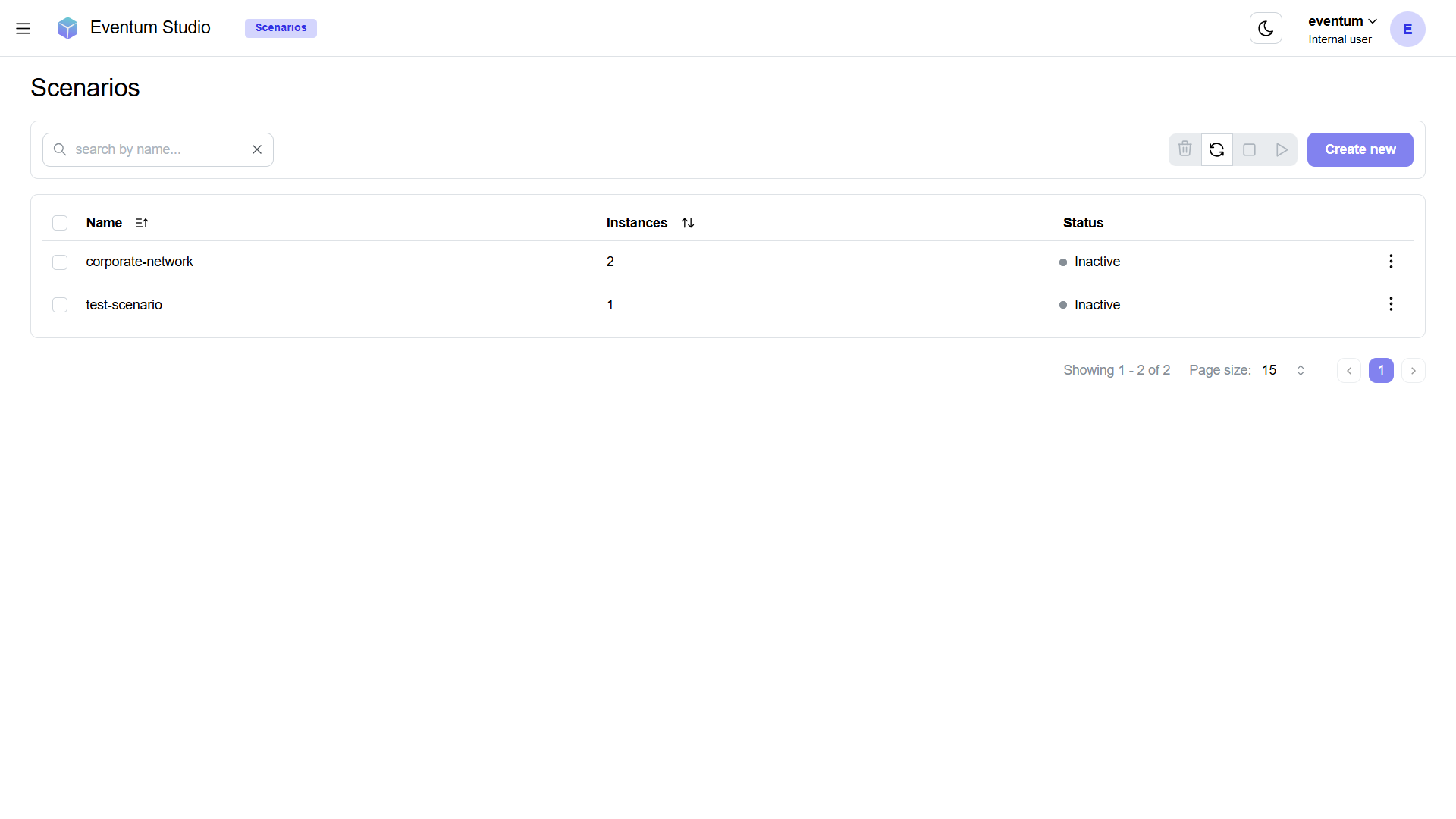
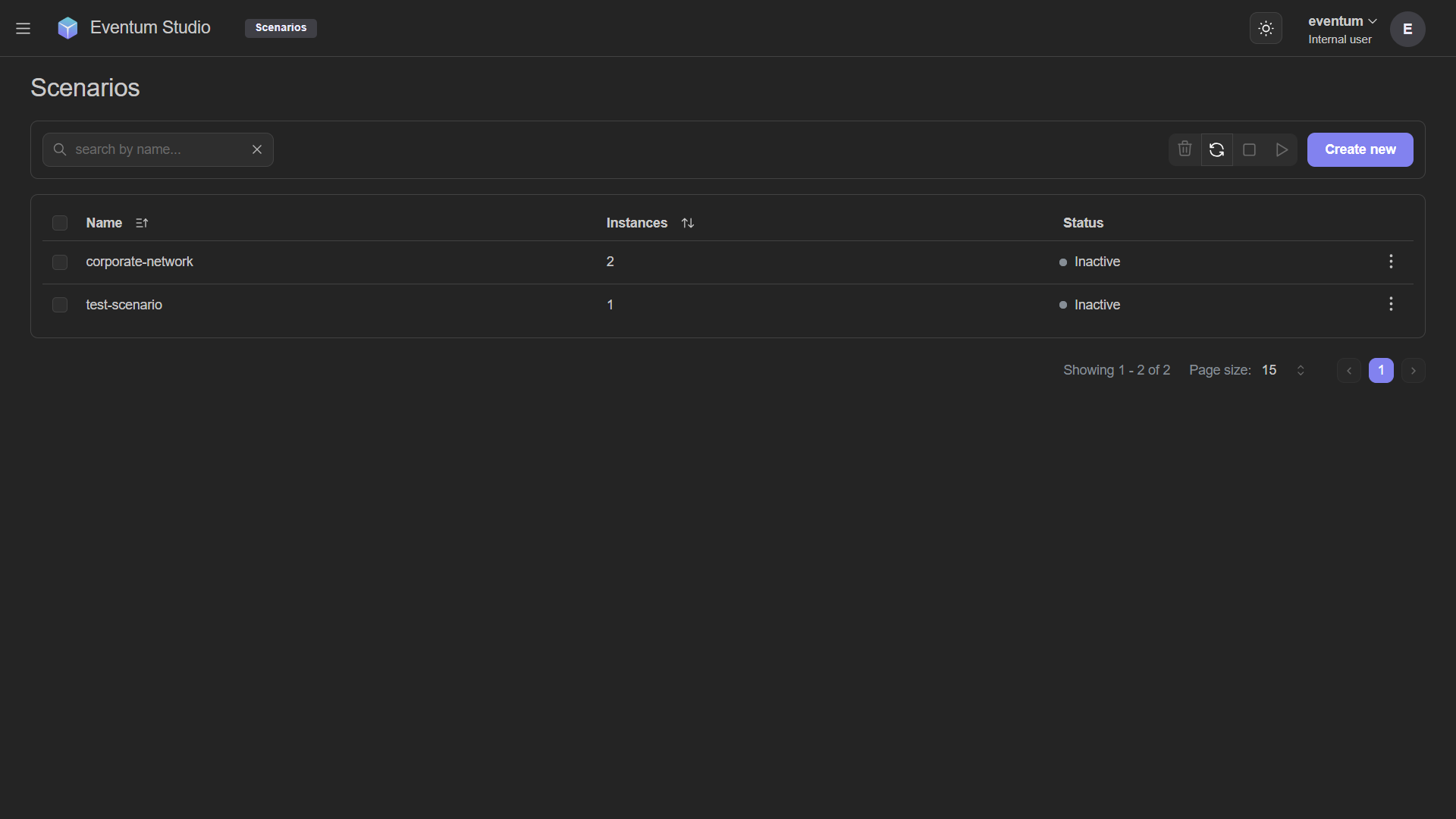
The table shows all scenarios with their instance count and aggregate status. The toolbar provides bulk Start, Stop, Delete, and Refresh for selected rows.
Click Create new to create a scenario — pick a name and select instances.
Scenario detail page
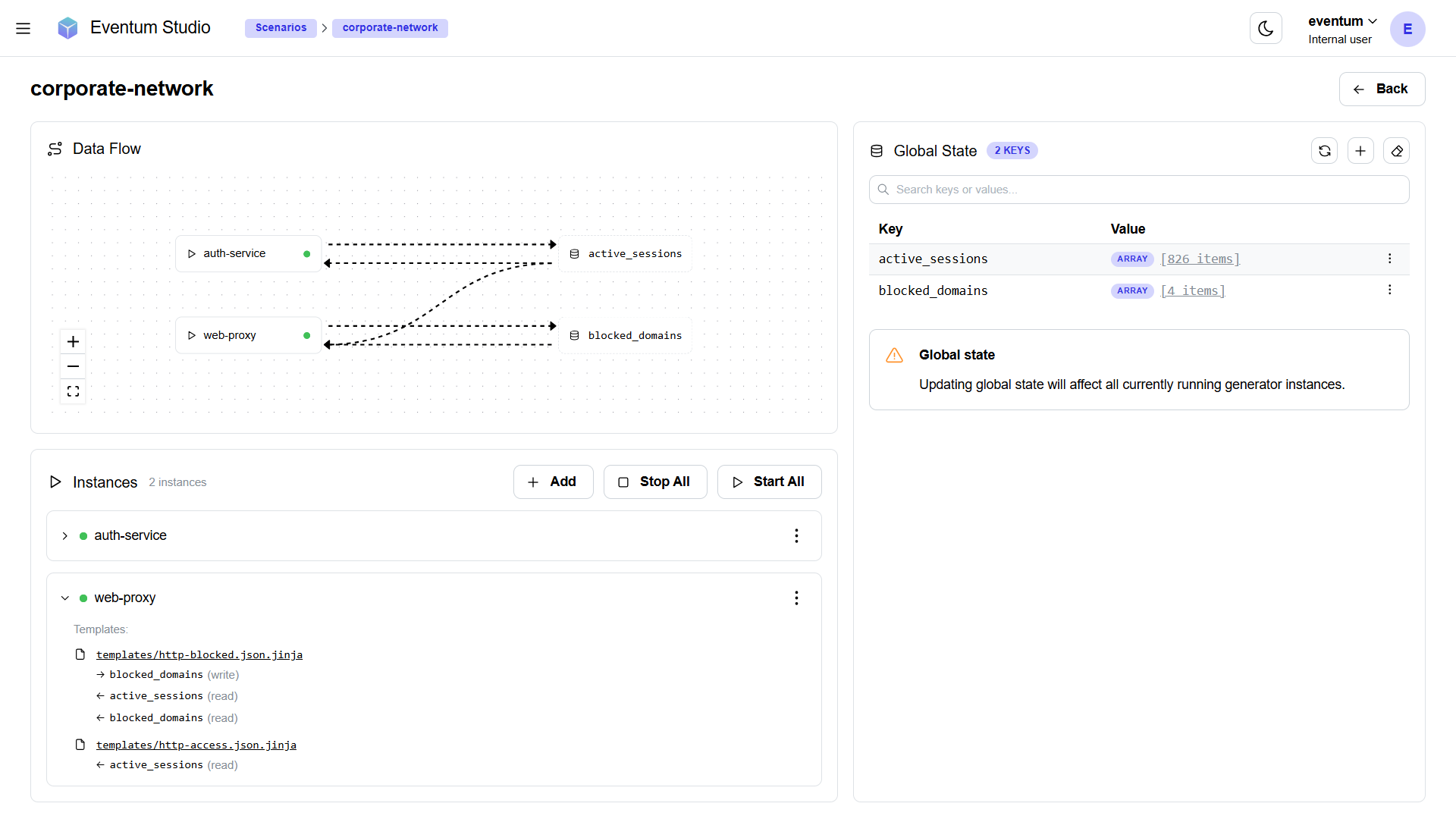
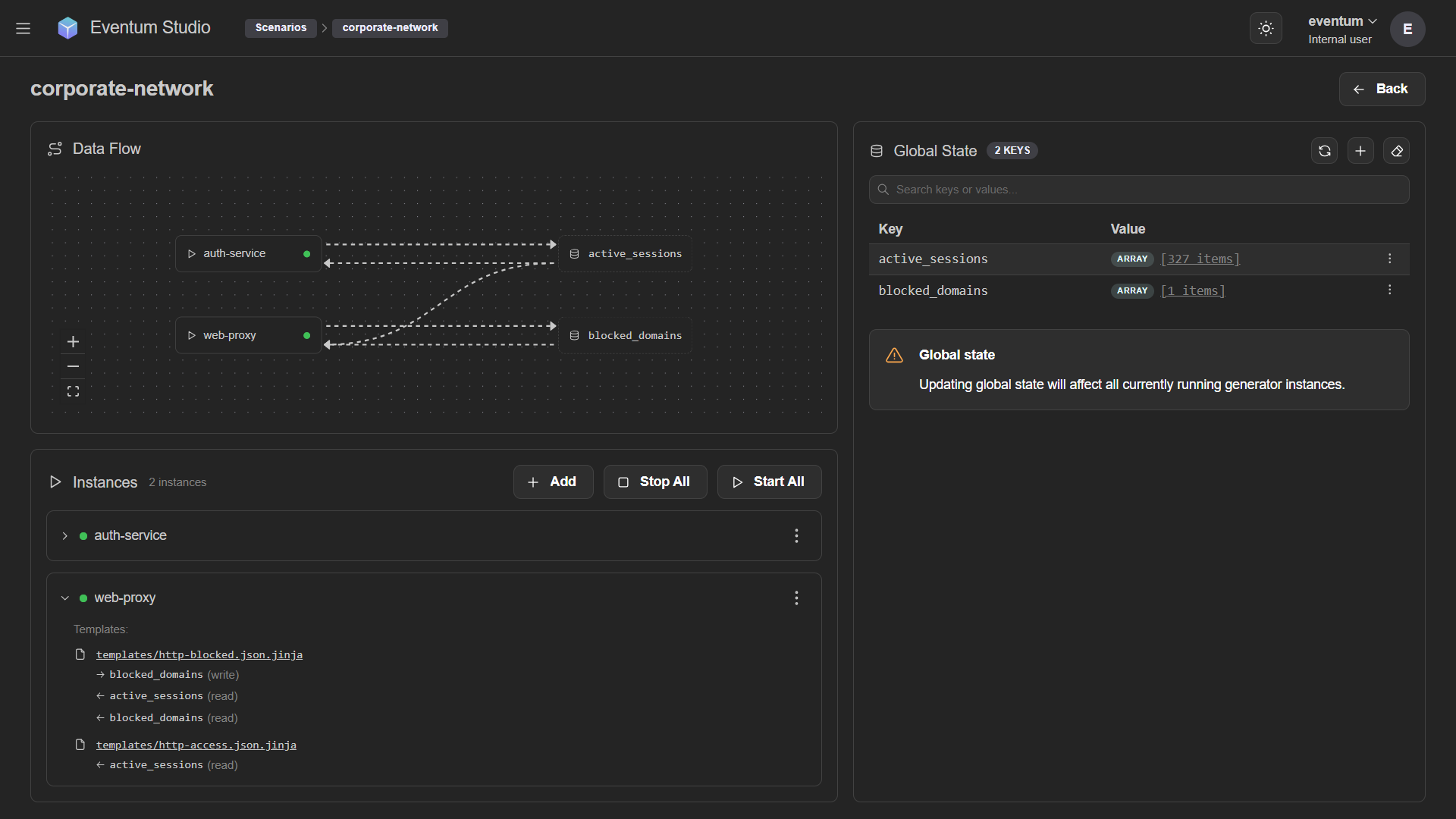
Data Flow diagram
The diagram shows how instances interact through global state — which instances write and read which global keys. It appears automatically when any generator uses globals.set() or globals.get() in its templates.
Hovering over an instance card or a global key reference highlights the related edges, dimming everything else.
Instance cards
Each generator in the scenario is shown as an expandable card. The context menu provides Start/Stop, Show metrics, Show logs, Edit instance, Go to project, and Remove from scenario.
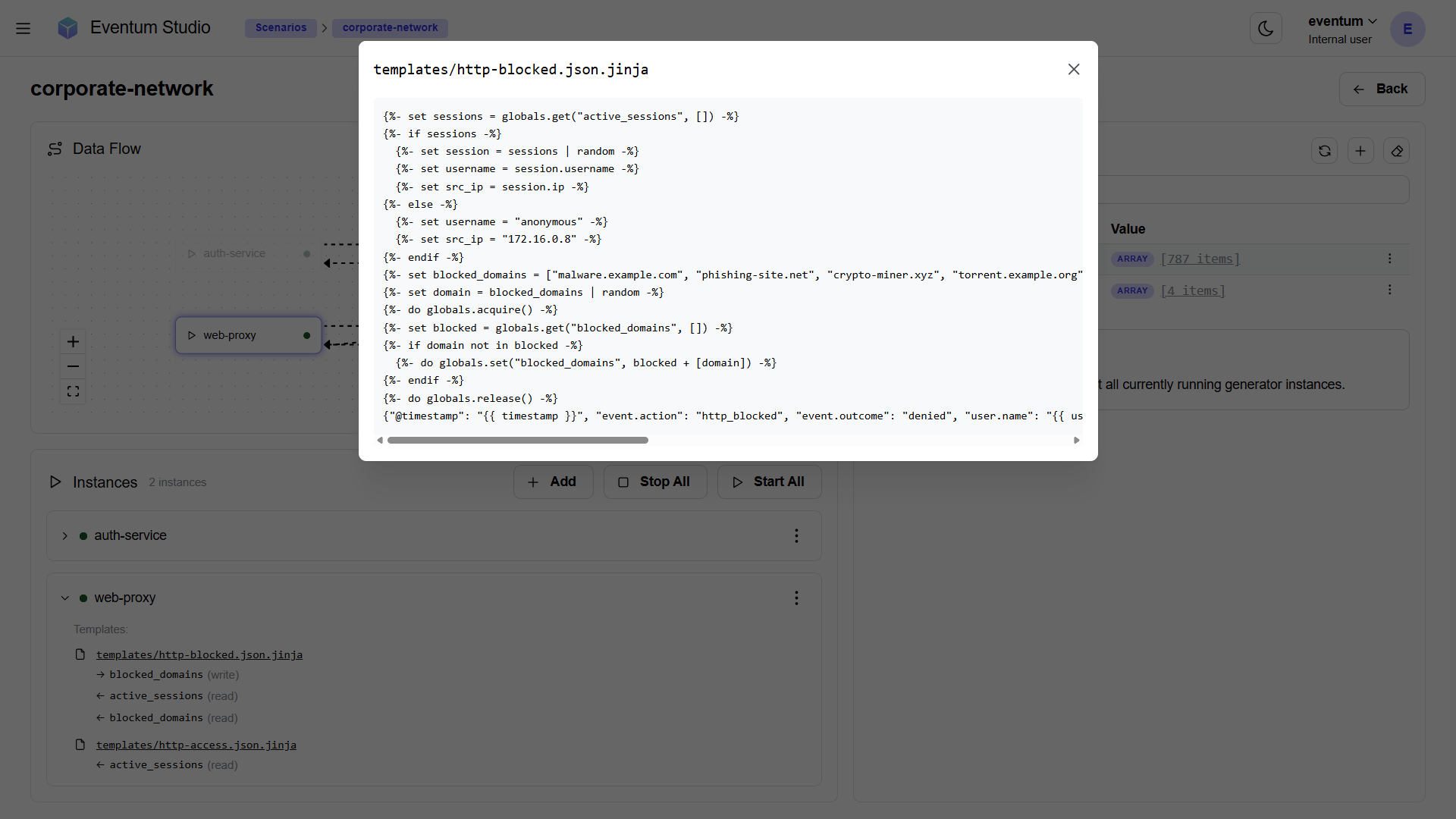
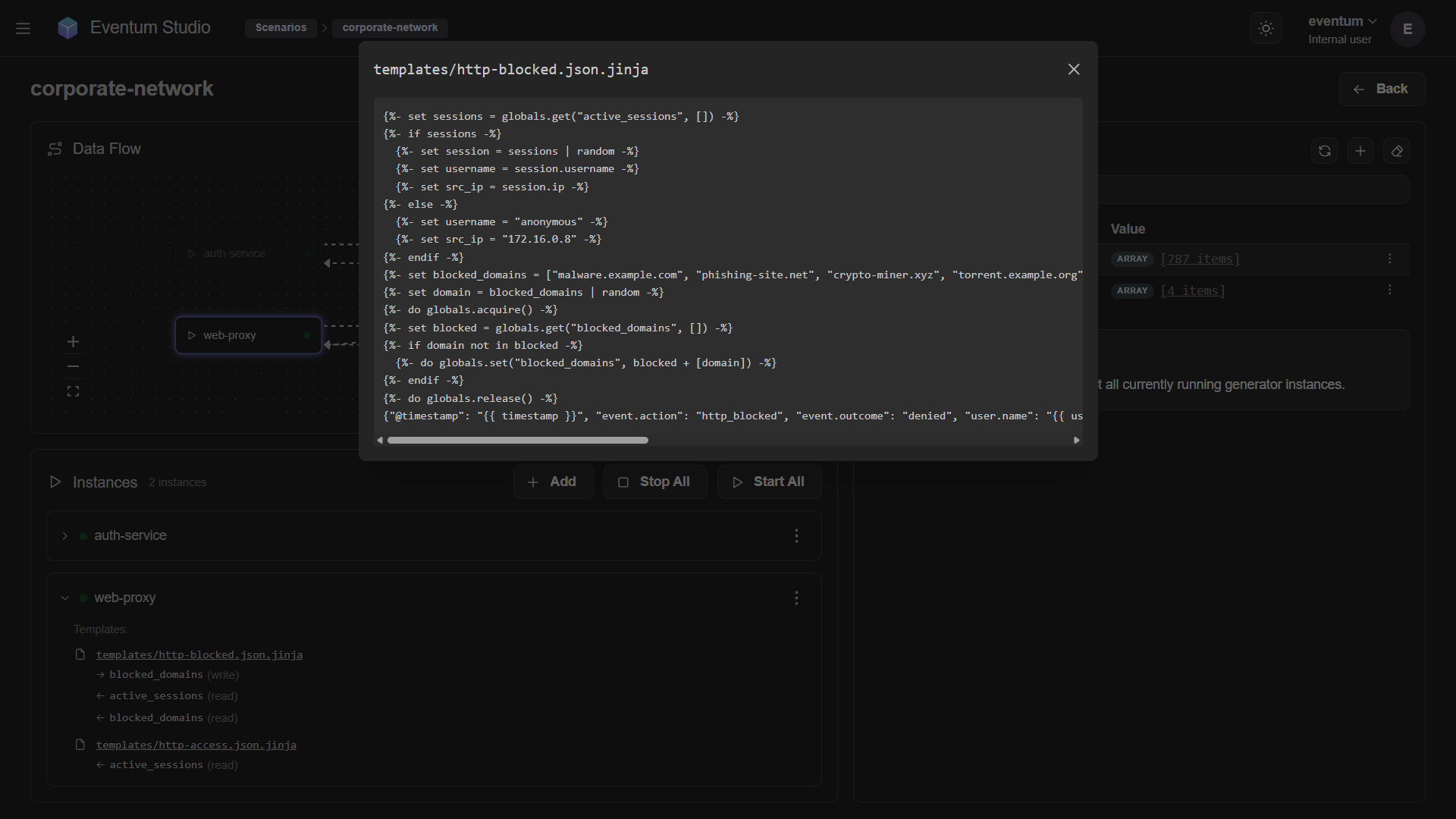
Cards that use global state are expandable — click to see which templates write and read which global keys. Hovering over a write/read entry highlights the corresponding edge in the Data Flow diagram.
Template preview
Click a template name in an expanded card to open a read-only preview of the template source. This lets you see how globals.set() and globals.get() are used without leaving the scenario page.
Bulk actions
The Add button attaches an existing instance to the scenario. Stop All / Start All control all instances at once.
Stopping instances that belong to multiple scenarios affects all of them. A confirmation dialog lists the affected scenarios before proceeding.
Global State panel
The right side shows a live key-value view of the globals dictionary. Values auto-refresh periodically.
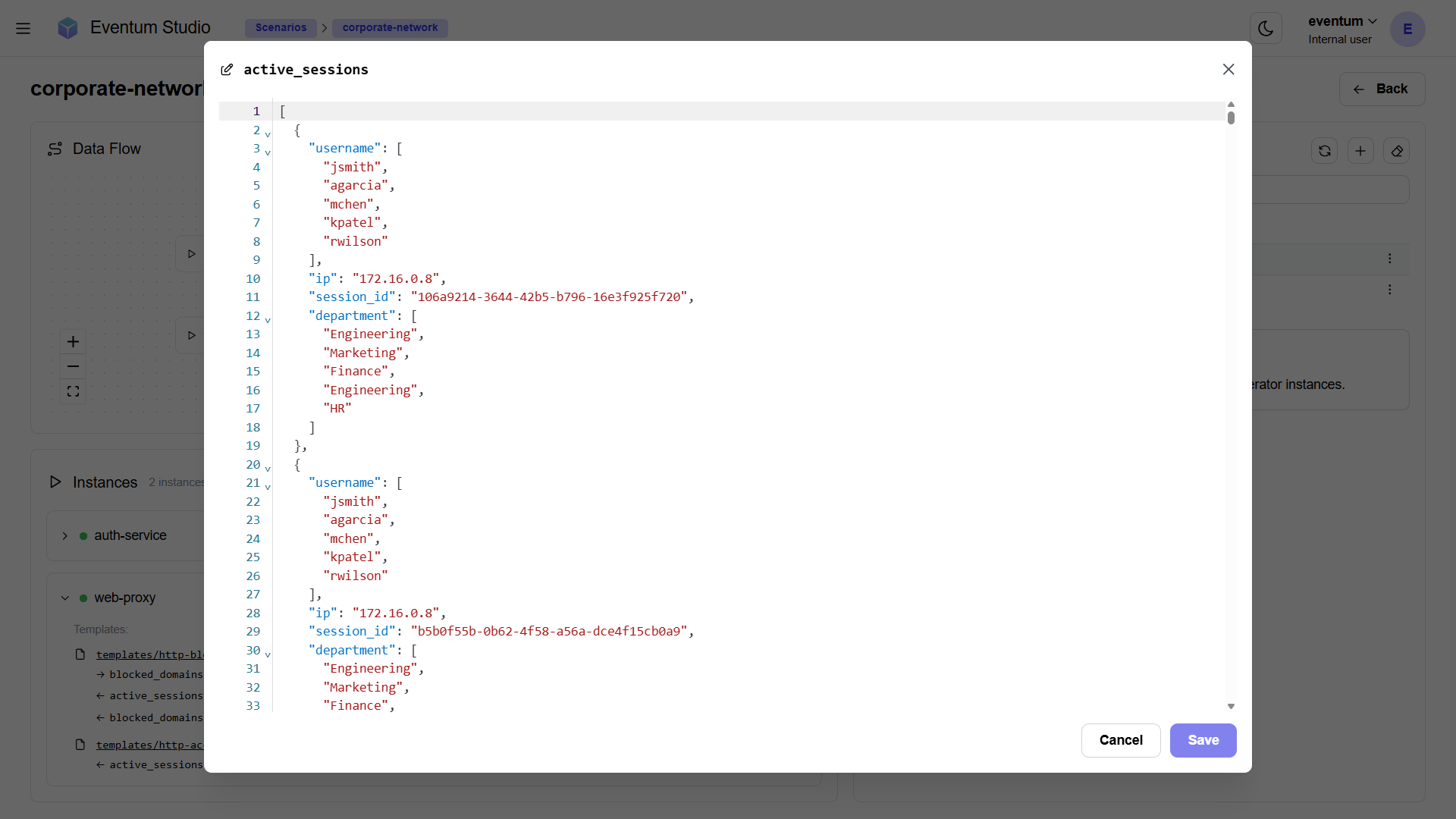
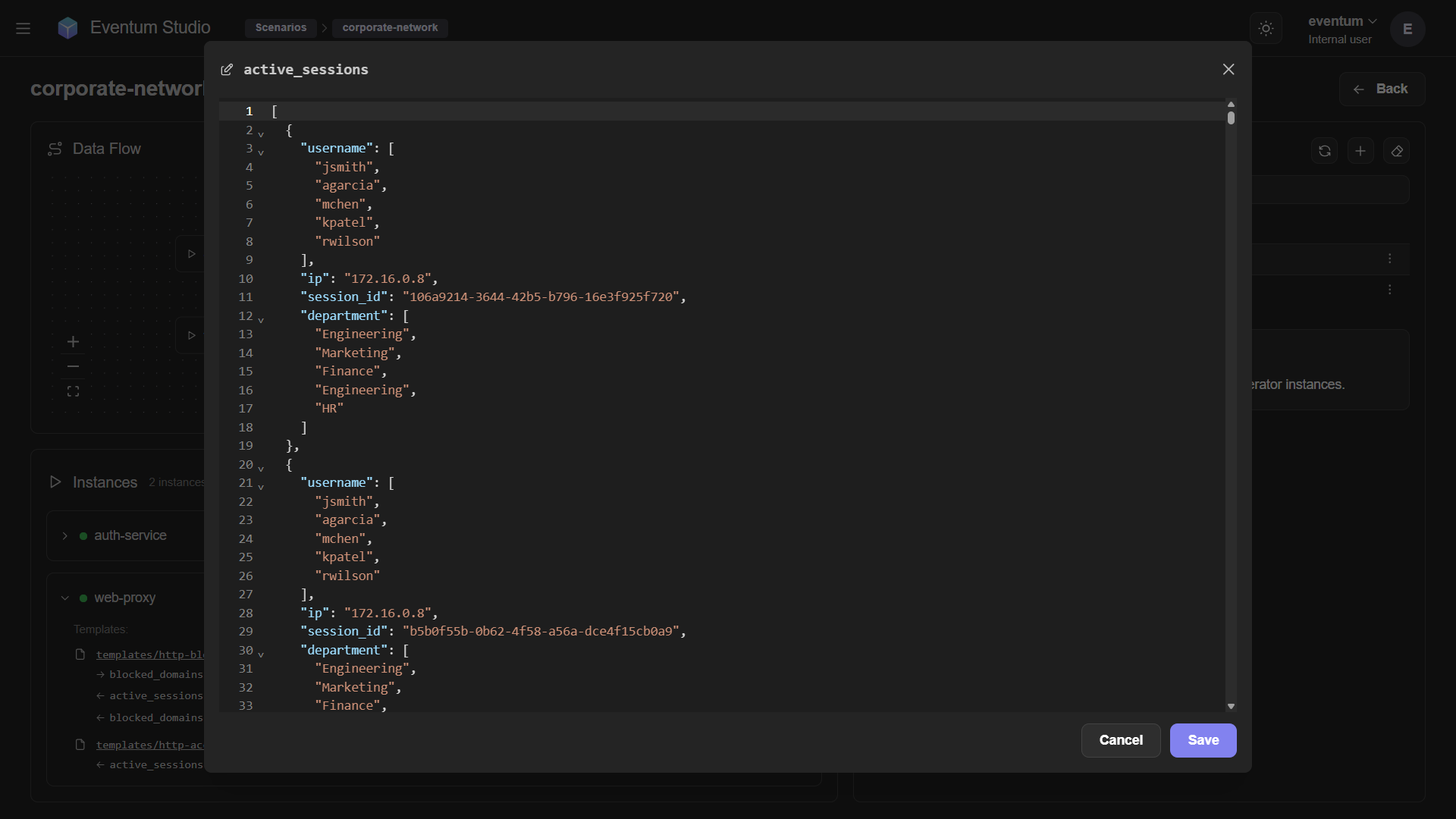
You can Add, Edit (opens a JSON editor), Delete individual keys, Clear all keys, or Sync to force-refresh from the backend.
Global state is application-wide — modifying it affects all running instances, not just the ones in this scenario. Check the Data Flow diagram to understand dependencies before making changes.