
Settings and management
Application settings, secrets management, and server lifecycle controls in Eventum Studio.
Studio provides three administrative pages for configuring the application itself — Settings for application parameters, Secrets for encrypted credentials, and Management for server lifecycle controls.
Settings
The Settings page is a form-based editor for the application configuration — the same parameters defined in eventum.yml. Changes made here are written back to the config file on disk.
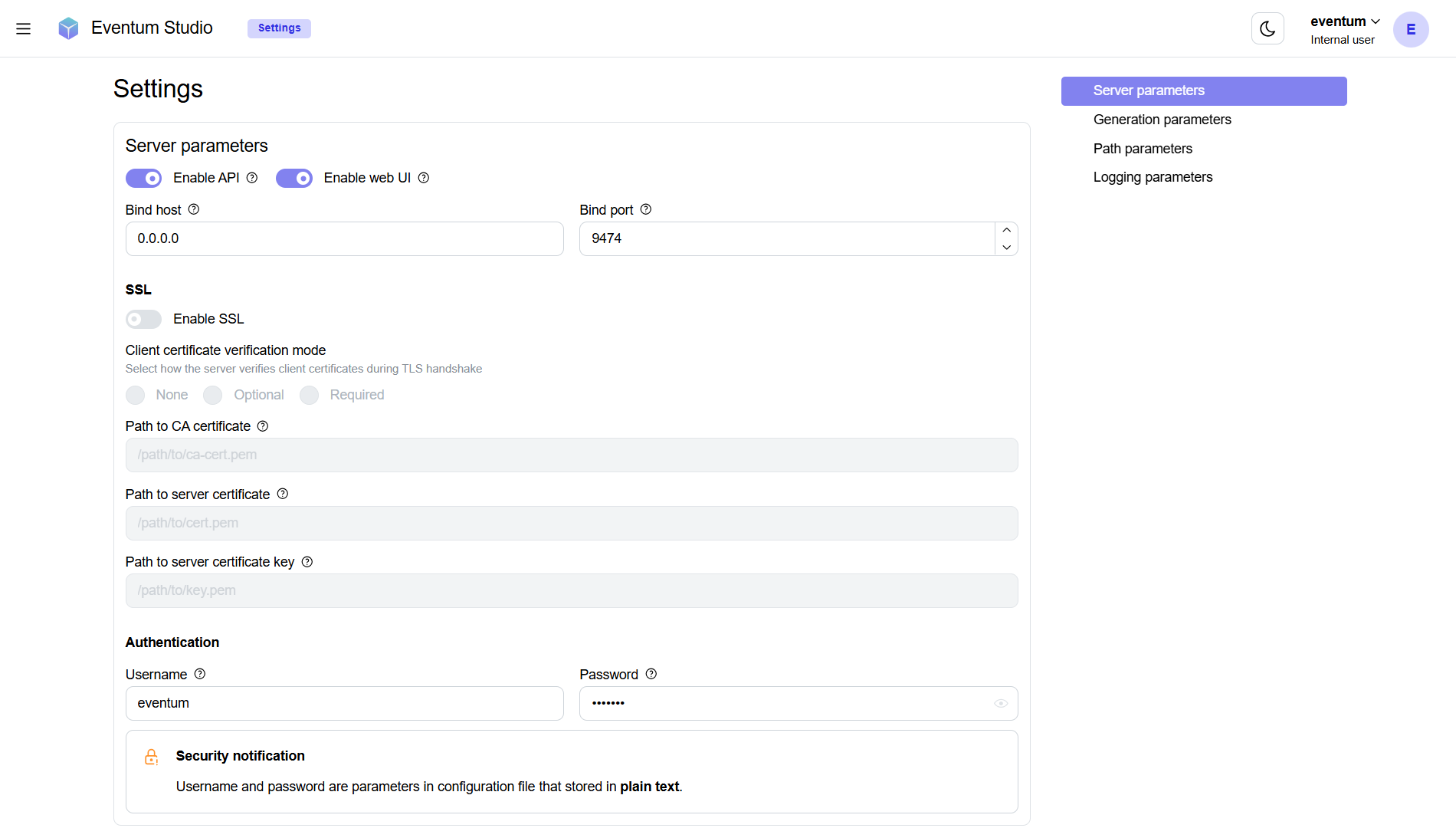
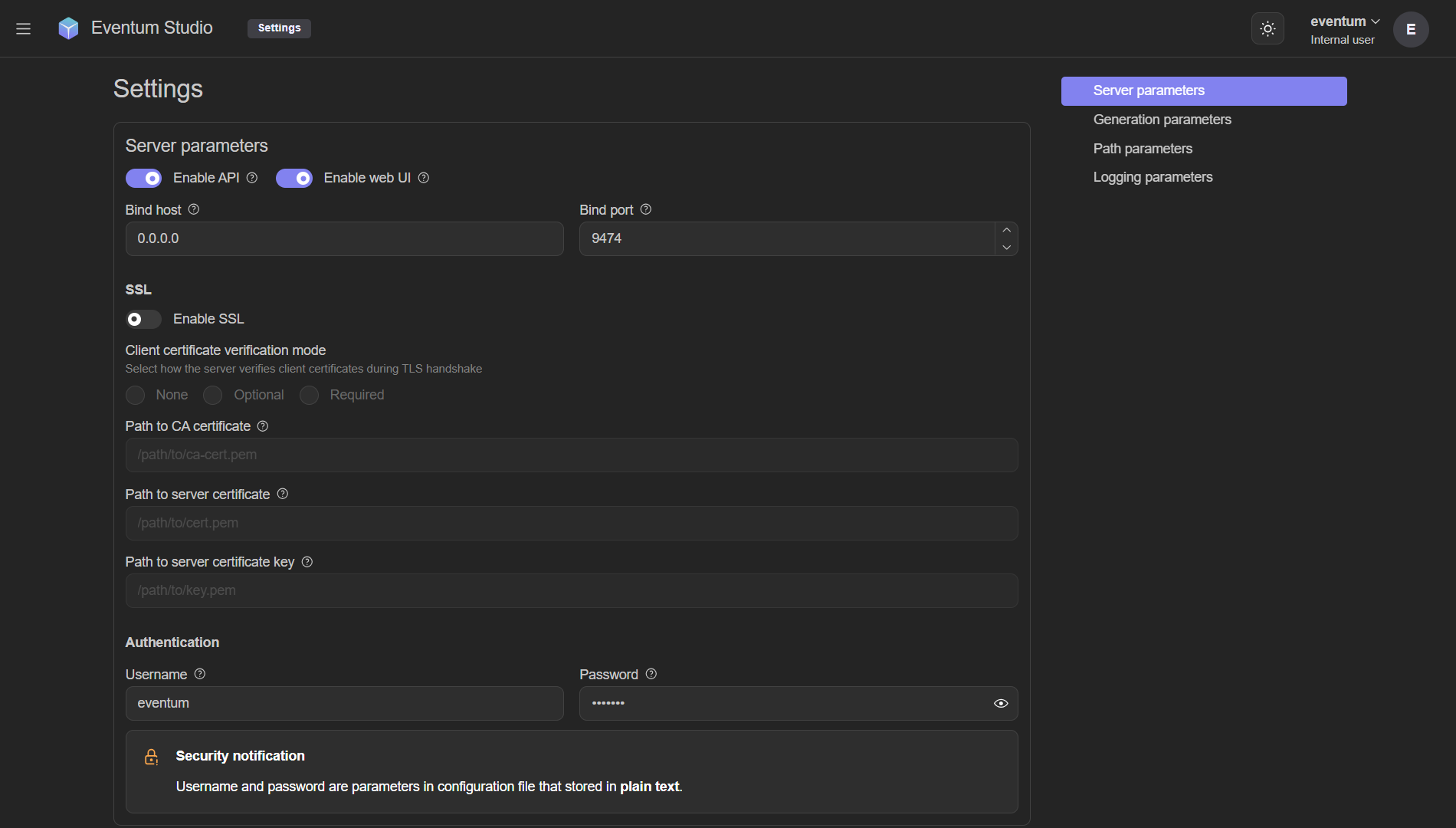
The page is organized into four sections, accessible via the navigation on the right:
Secrets
The Secrets page provides a visual interface for managing the encrypted keyring — the same secrets you would manage with the eventum-keyring CLI tool.
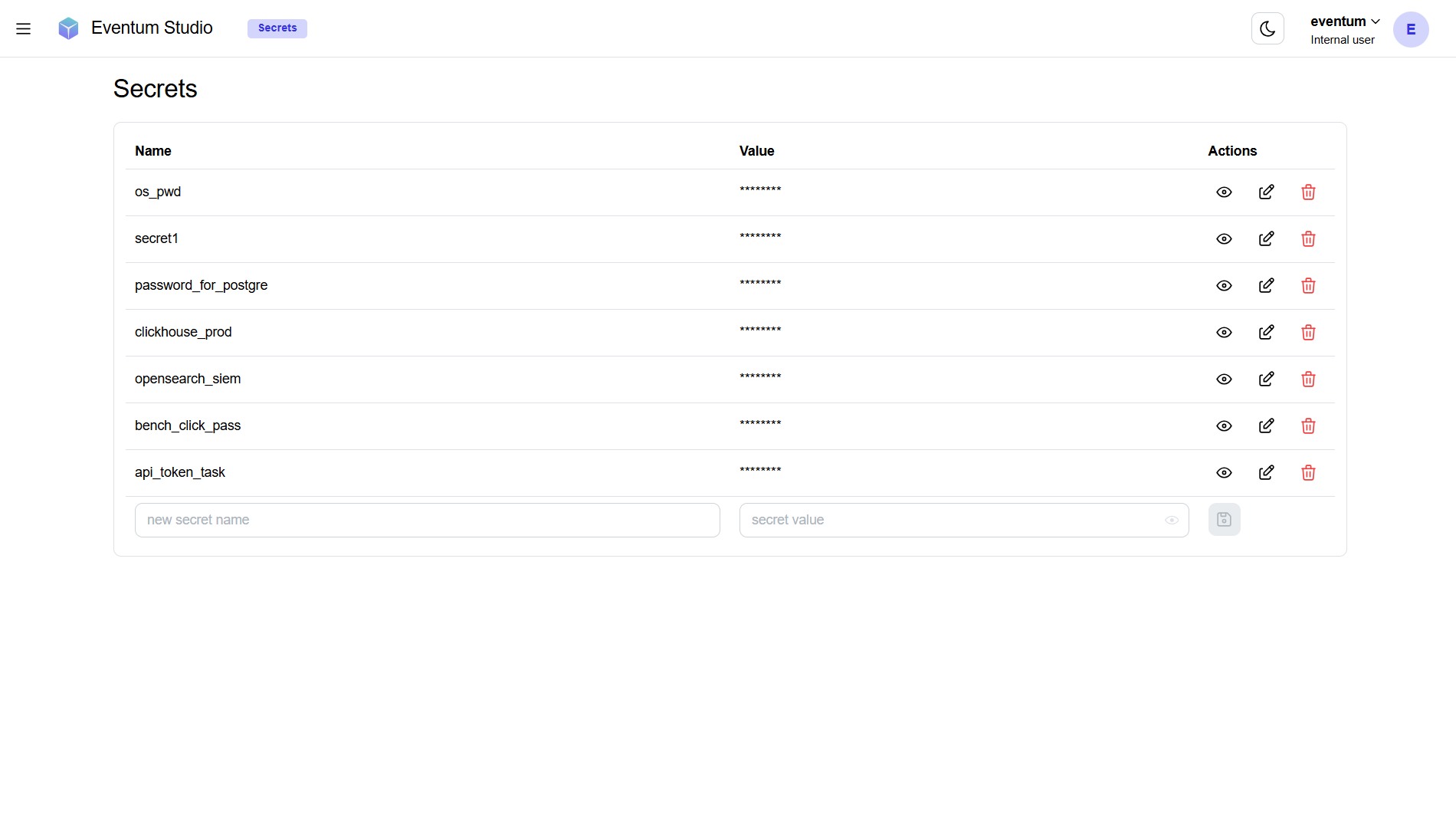
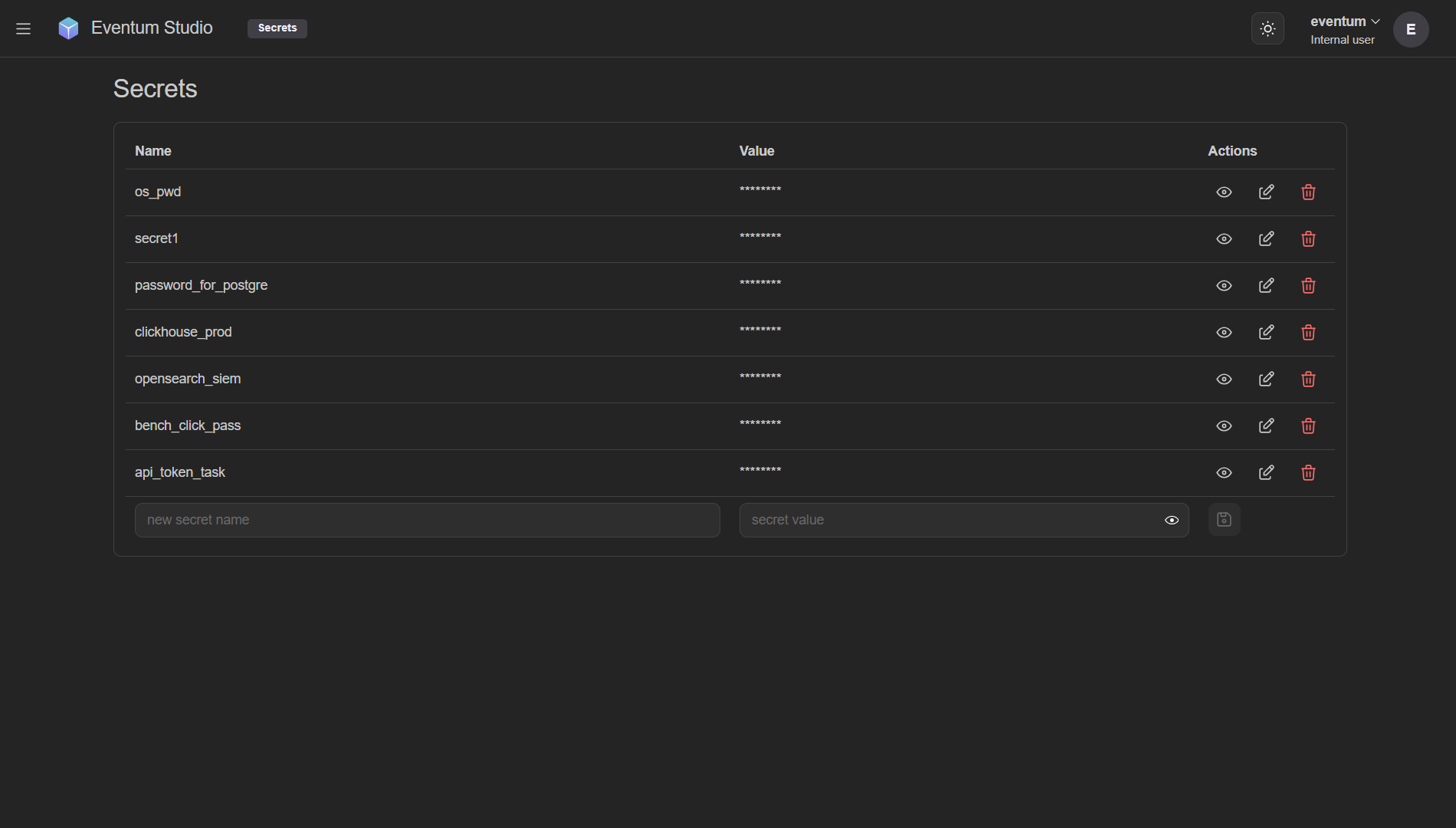
The page shows a table with three columns:
| Column | Description |
|---|---|
| Name | The secret name (the key used in ${secrets.name} tokens). |
| Value | The secret value, masked with asterisks by default. |
| Actions | Three buttons per row: reveal (), edit (), and delete (). |
Viewing secrets
Click the reveal () button next to a secret to reveal its value. Click again to hide it.
Editing secrets
Click the edit () button to edit an existing secret's value. The field becomes editable and you can save the updated value.
Deleting secrets
Click the delete () button to remove a secret from the keyring. This is irreversible — any generator configs referencing ${secrets.name} for the deleted secret will fail to load until the secret is re-created.
Adding a new secret
At the bottom of the table, two input fields let you add a new secret:
- new secret name — the name for the secret.
- secret value — the value to encrypt and store.
The value field has a reveal () toggle and a save () button. After saving, the secret appears in the table above and is immediately available for use in generator configs.
Management
The Management page provides server lifecycle controls — restart and shutdown.
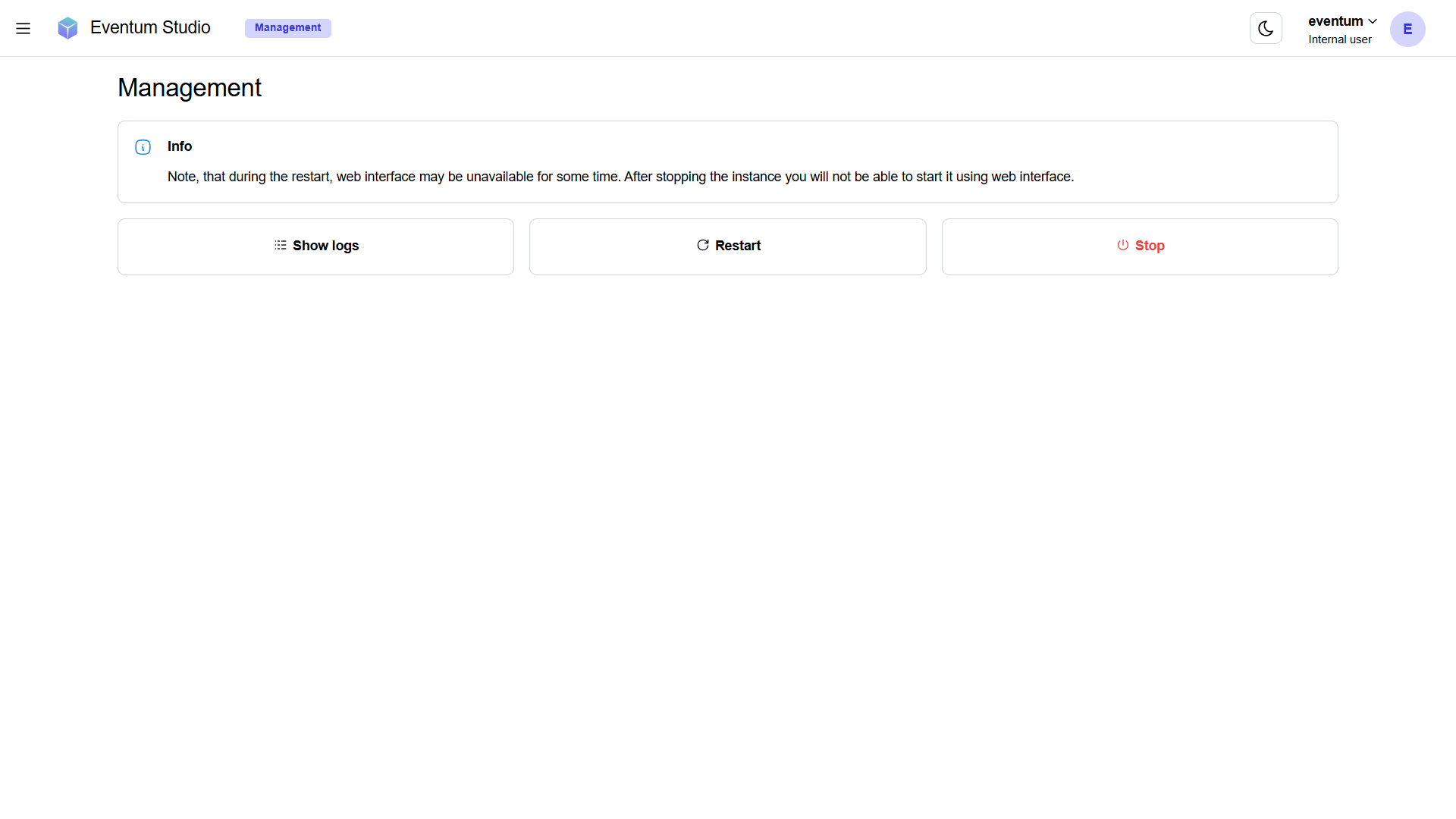
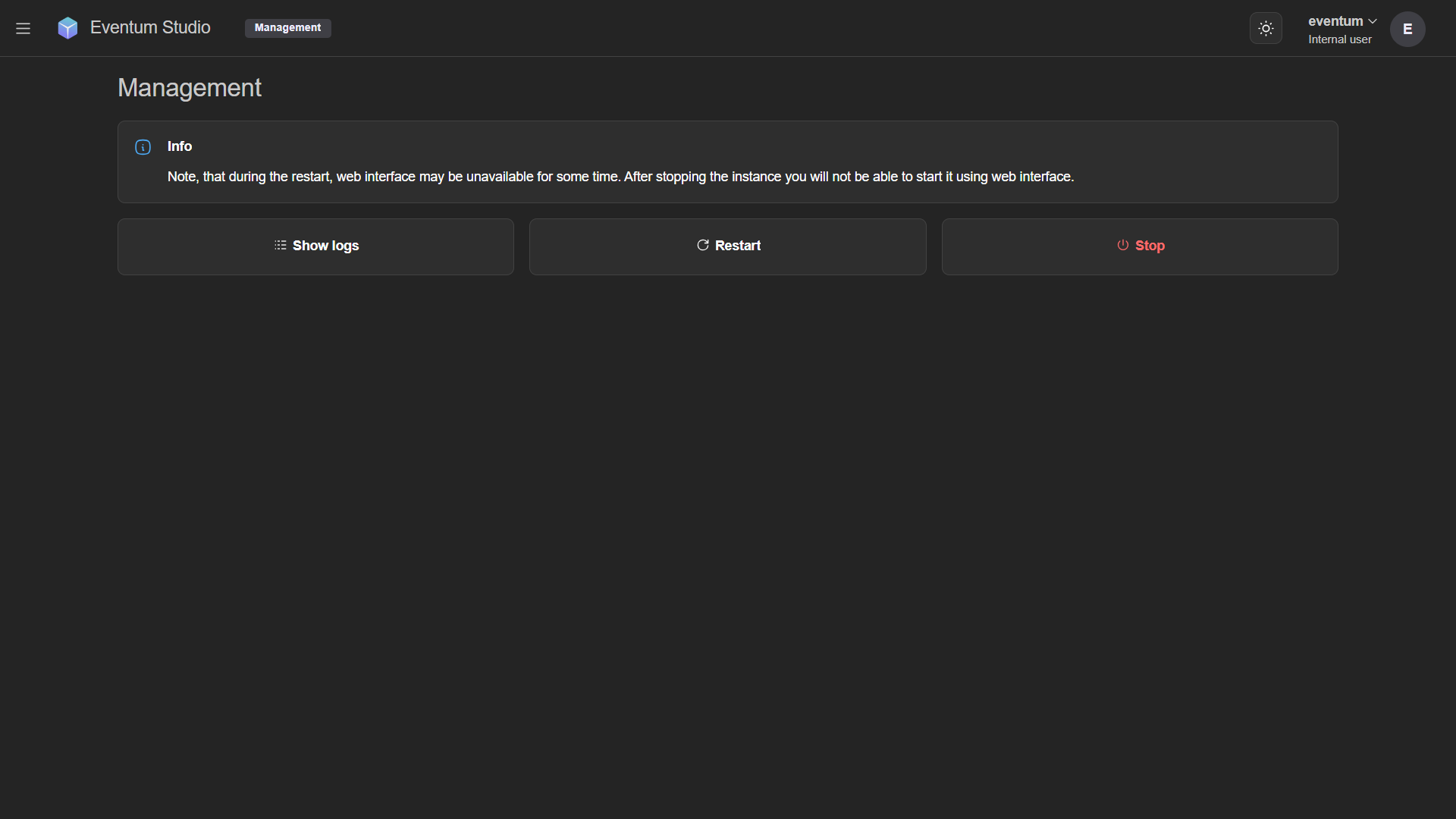
Three action buttons are available:
| Action | Description |
|---|---|
| Show logs | Opens the application-level log viewer (same as instance logs, but for the main application process). |
| Restart | All generators are stopped, the configuration is re-read, and generators are re-started according to the updated startup config. The web UI may be briefly unavailable during the restart. This is equivalent to sending SIGHUP to the process. |
| Stop | Stops the Eventum application entirely. All generators are shut down gracefully and the server process exits. This is irreversible from the UI — once stopped, you'll need to restart Eventum from the command line. |
The Stop button shuts down the entire Eventum process. You will lose access to Studio and will need to restart Eventum from the terminal with eventum run -c eventum.yml.